
Mac Desktop App Guide
Important instructions for Mac users to ensure a smooth and uninterrupted experience with Hireboard's code partner desktop application.
Accessibility & Screen Recording Permissions
When you start tracking your activity for the first time, your operating system (such as macOS) may prompt you to grant specific permissions. These are required for the app to function correctly and capture the necessary activity data.
1Accessibility Permission
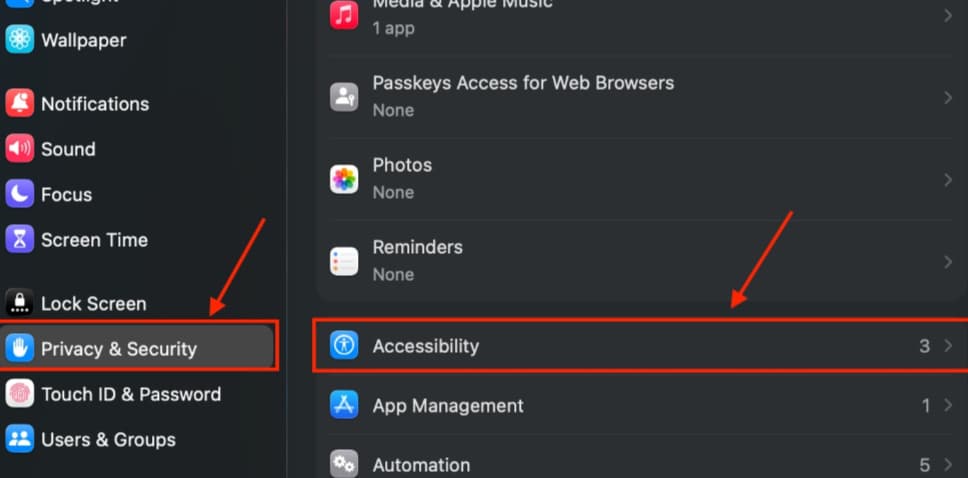
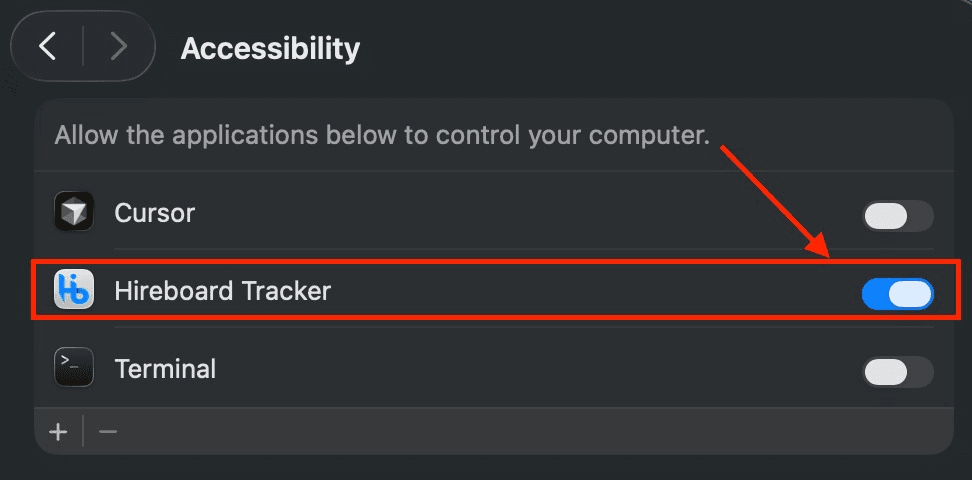
Go to System Settings > Privacy & Security > Accessibility and toggle the switch ON for Hireboard Tracker. This allows the app to detect keyboard and mouse activity levels.
2Screen Recording Permission
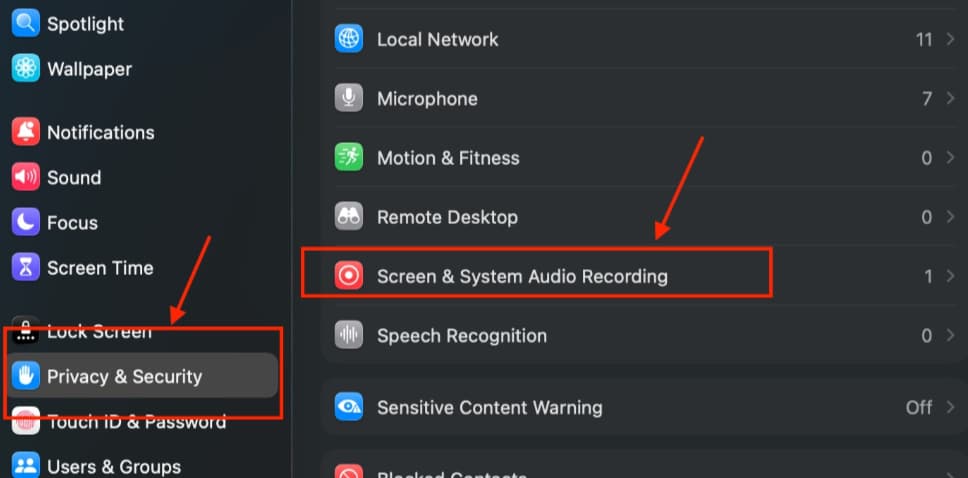
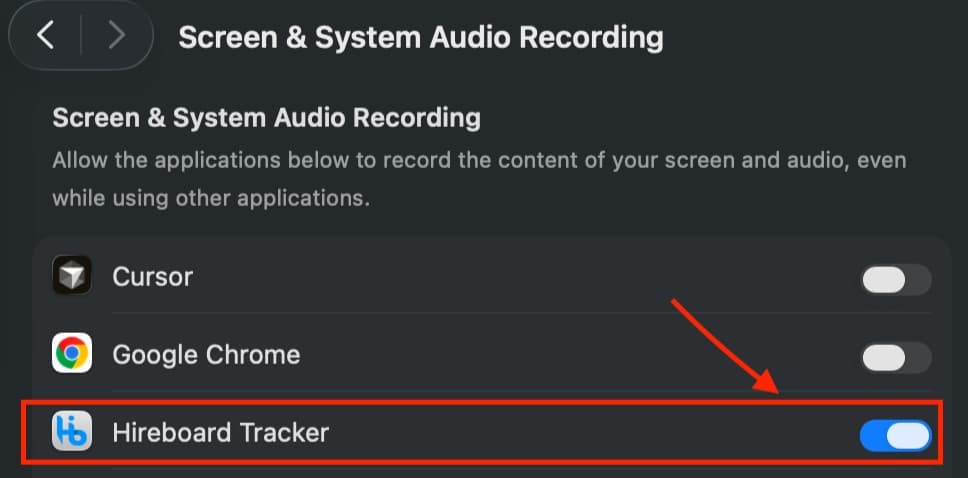
Go to System Settings > Privacy & Security > Screen Recording and toggle the switch ON for Hireboard Tracker. This allows the app to capture periodic screenshots of your work.
macOS: Fixing "App is Damaged" or Broken Image Errors
Due to macOS Gatekeeper restrictions, you might encounter an error stating the app "is damaged and can't be opened" or experience broken app visuals. If this happens, you can resolve it quickly using the Terminal. Open your Terminal application and run the commands below in order, pressing Return after each one.
1Remove the quarantine attributes
xattr -cr /Applications/Hireboard\ Tracker.appThis removes the quarantine attributes that prevent the app from running normally.
2Quit the app and re-sign it
pkill -f "Hireboard Tracker"
codesign --force --deep --sign - "/Applications/Hireboard Tracker.app"
The first command closes Hireboard Tracker if it is running. The second re-signs the app on your Mac so macOS allows it to open.
3Verify the fix
codesign --verify --deep --strict "/Applications/Hireboard Tracker.app" && echo OKIf the Terminal prints OK, the app is ready. Open Hireboard Tracker again from your Applications folder.
macOS: Updating to a New Version
To update Hireboard Tracker on a Mac, uninstall the current version and install the latest one. Follow the steps below in order.
1Quit and uninstall the current version
pkill -f "Hireboard Tracker"
rm -rf "/Applications/Hireboard Tracker.app"
This closes the app and removes it from your Applications folder. You can also drag Hireboard Tracker from Applications to the Trash instead.
2Download and install the latest version
Click Install to download the latest version for Mac, open the downloaded file, and drag Hireboard Tracker into your Applications folder.
3Run the macOS fix again
Every new download needs the fix again. Run all three steps from Fixing "App is Damaged" or Broken Image Errors above before opening the app.
4Turn the permissions back on
macOS checks each app's signature, and the new version has a different one, so the permissions you gave the old version no longer apply. Tracking stops even though the switches still look ON. In System Settings > Privacy & Security, open Accessibility and Screen Recording (the same screens as in Accessibility & Screen Recording Permissions above), select Hireboard Tracker, remove it with the – button, then add it again with + and switch it ON. Then open the app and sign in.